Those Mystery Processes Finally Make Sense: OpenEnd
One of the most familiar local development problems is also one of the smallest:
Port 5173 is already in use.
Changing the port is not the hard part. The hard part is figuring out who is using it. Task Manager shows a list of node.exe, python.exe, Code.exe, and other familiar names, but that rarely tells you which one belongs to the project you are working on, which one was left behind yesterday, and which one was started by a tool in the background.
Without a dedicated tool, the workflow often looks like this:
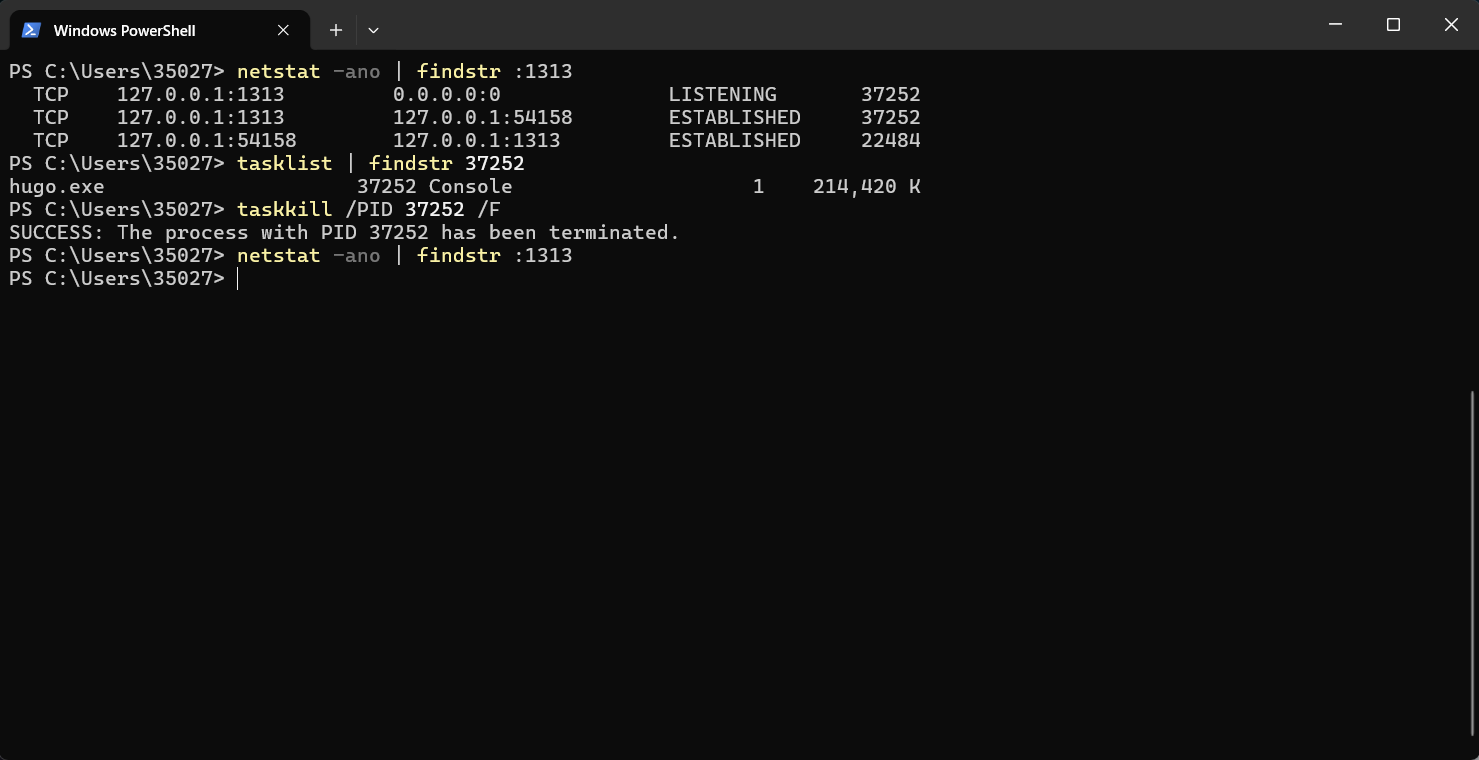
You check the port, copy the PID, look up the process, confirm what it is, then run another command to end it. It works, but doing this repeatedly gets old quickly.
OpenEnd is built for that gap. It is a local process, port, and system resource management tool for Windows. It is not trying to replace Windows Task Manager. It focuses on the kind of information that gets mixed together in development environments: ports, processes, PIDs, paths, command lines, CPU, memory, and operation logs.
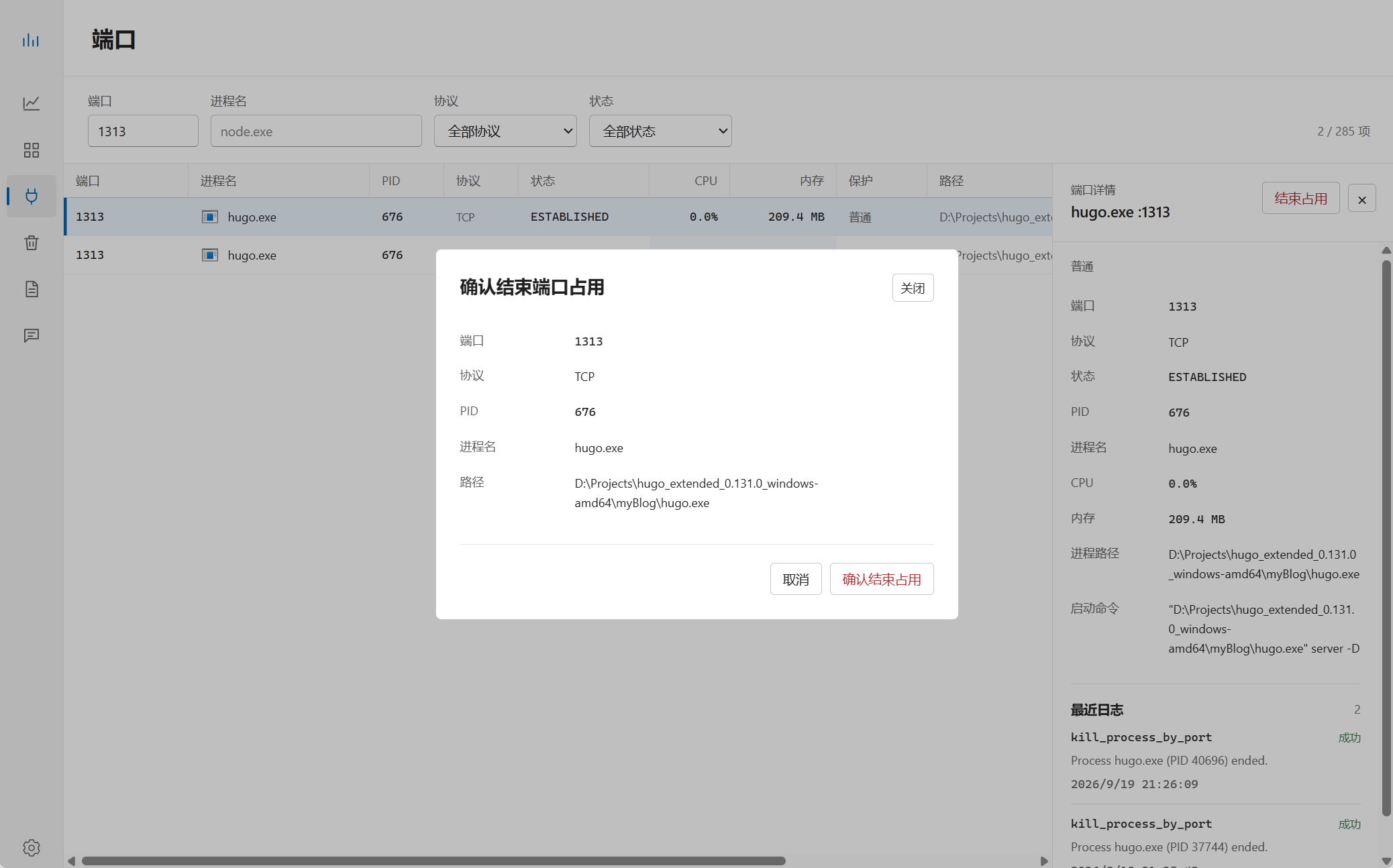
In the Ports page, you can search a port and see the process behind it directly. If 1313 is occupied, OpenEnd can show that it belongs to hugo.exe, along with the PID, path, command line, CPU usage, and memory usage. If you are sure it is no longer needed, you can end the occupancy after confirmation.
That confirmation step matters. Before ending anything, you get one last look at the port, protocol, PID, process name, and path.
For everyday use, I often start from the Performance page. When the machine suddenly feels slow, or the fans start working harder than usual, this gives me a quick snapshot of CPU, memory, GPU, VRAM, thread count, process count, and occupied port count.
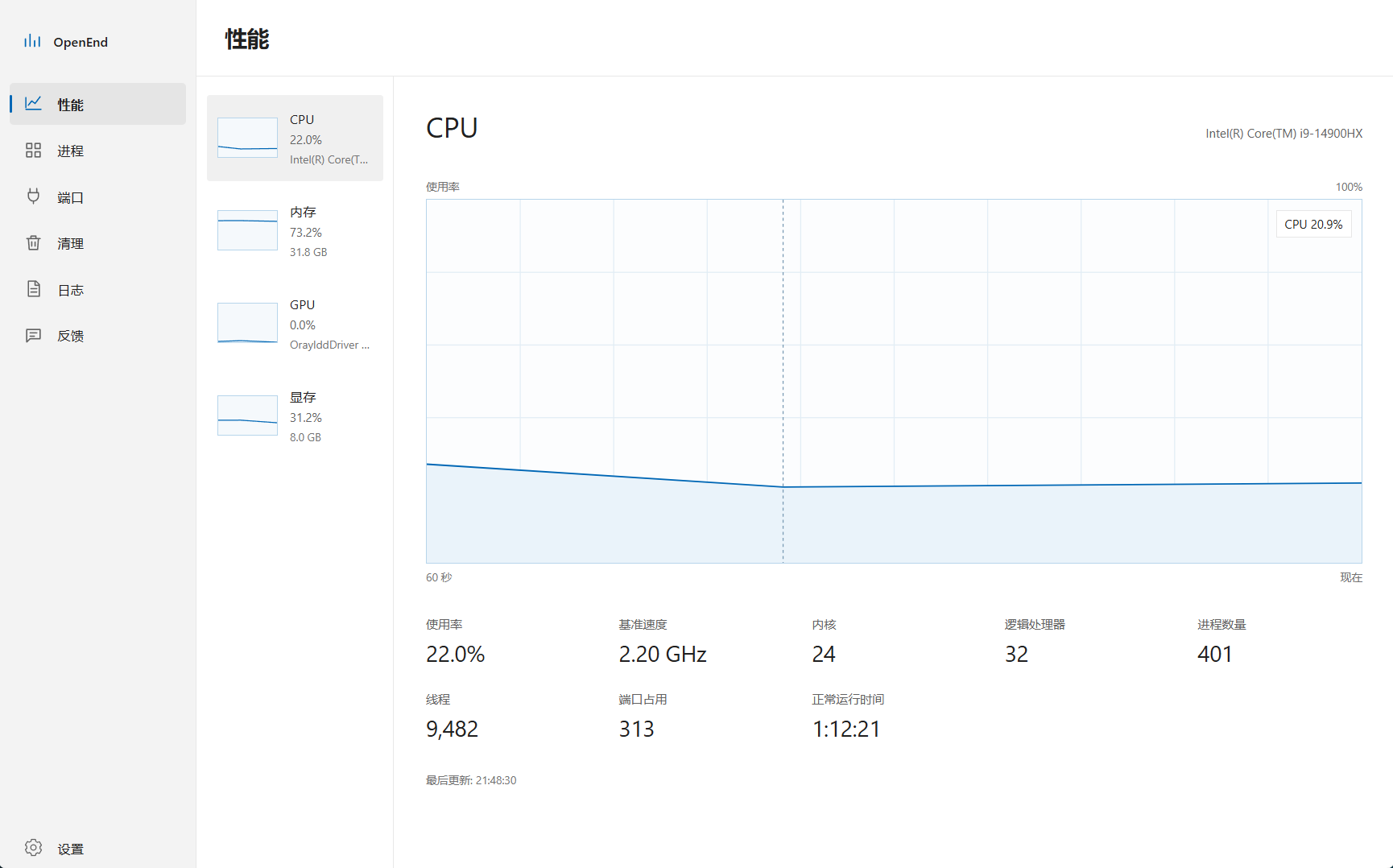
It is not meant to be a heavy monitoring dashboard. It is there to answer a simple question quickly: is the machine under pressure, and should I look for a process or service that is still running in the background?
The Processes page is where mystery processes become readable. Search for node, for example, and you can see related processes with PID, CPU, memory, occupied ports, path, and command line.
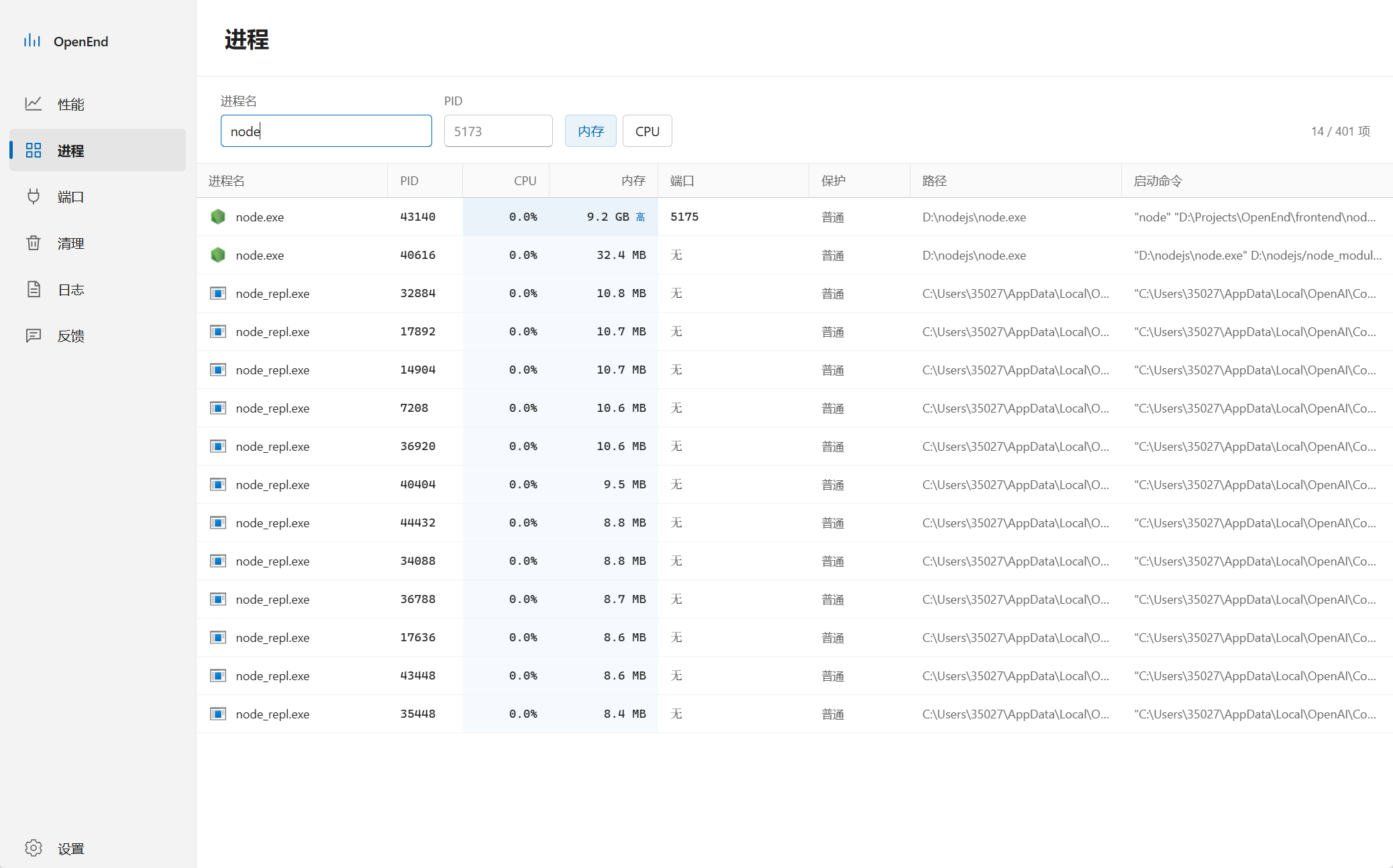
That extra context makes a big difference. Two processes may both be called node.exe, but one may be your current dev server while another may be a helper process or a leftover task. Seeing the path and command line makes the decision much easier.
The Ports page is the place I go when a service refuses to start. You can filter by port, process name, protocol, and status.
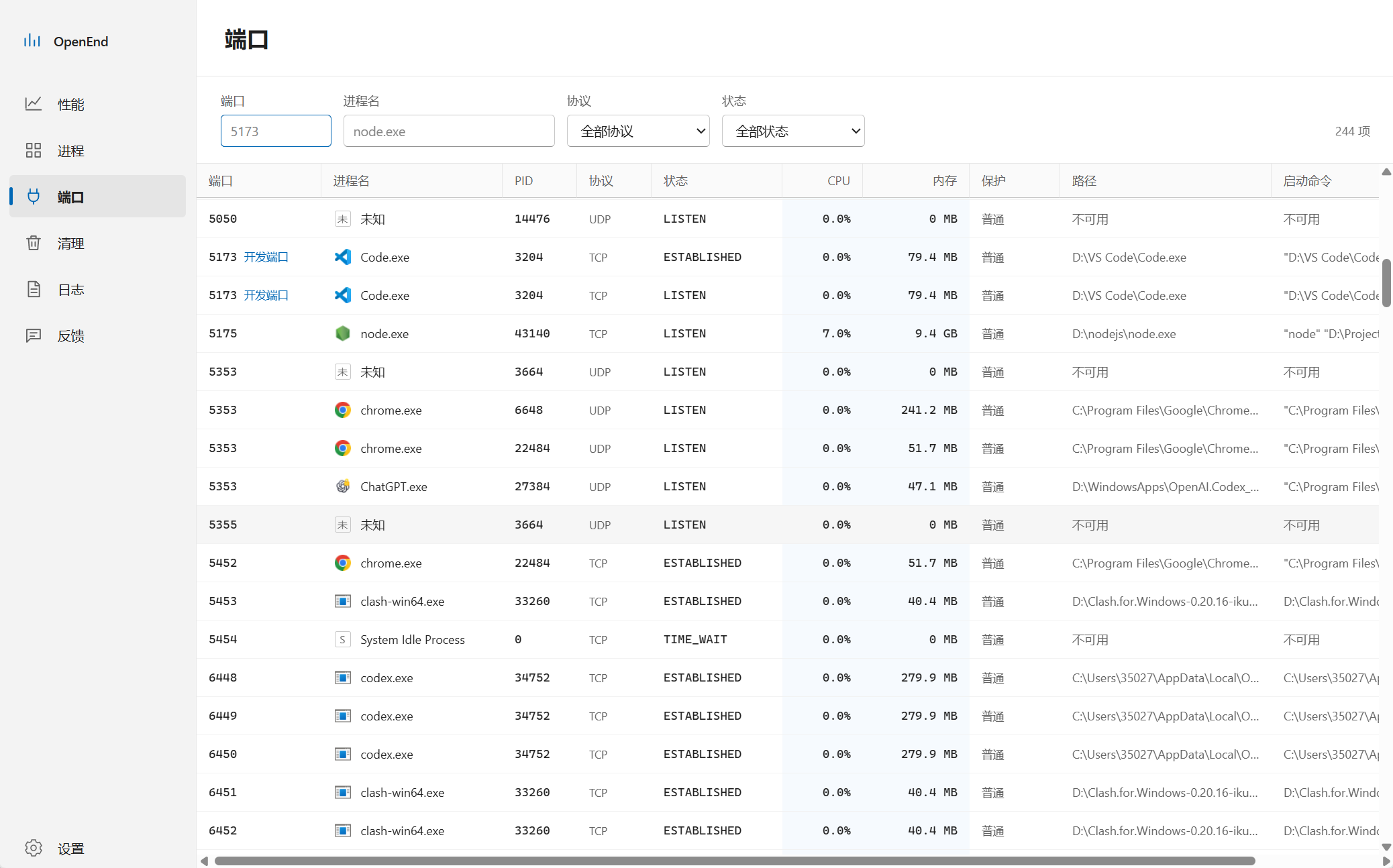
If you only care about one port, such as 5173, the result becomes very focused:
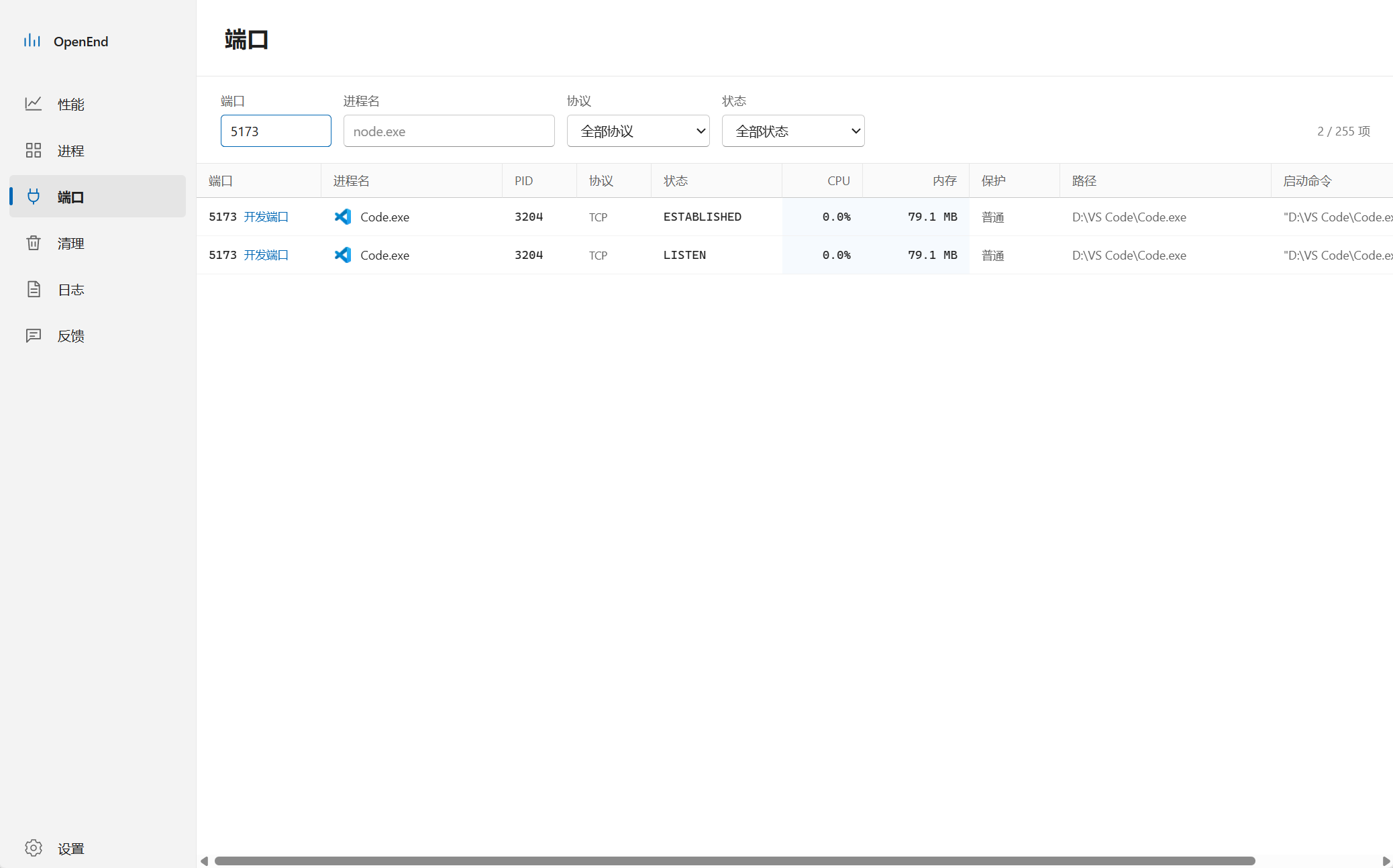
Instead of only knowing that a port is occupied, you can see the process, PID, protocol, connection state, resource usage, path, and command line in one table.
Cleanup is the page I use when I am done working for the day. OpenEnd can identify likely development-related processes based on rules, such as Node / Vite, Python, Go, database processes, and common local development ports.
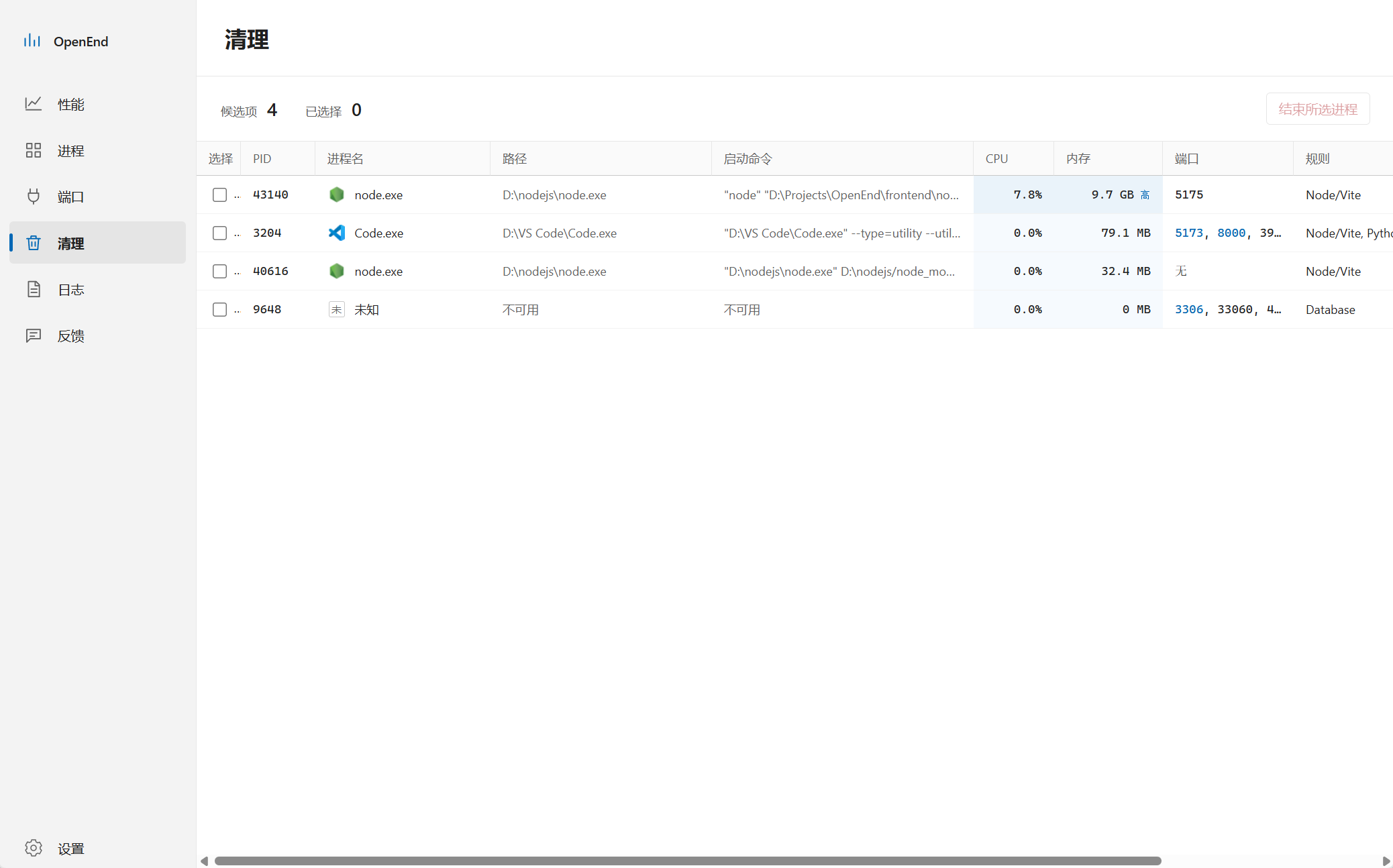
This is intentionally not automatic cleanup. OpenEnd recommends candidates, but you decide. You can review the path, command line, CPU, memory, ports, and matched rule before ending anything. Development machines often have useful services running in the background, so the tool should make the situation clear rather than act on its own.
Every process or port-ending operation is recorded in Logs.
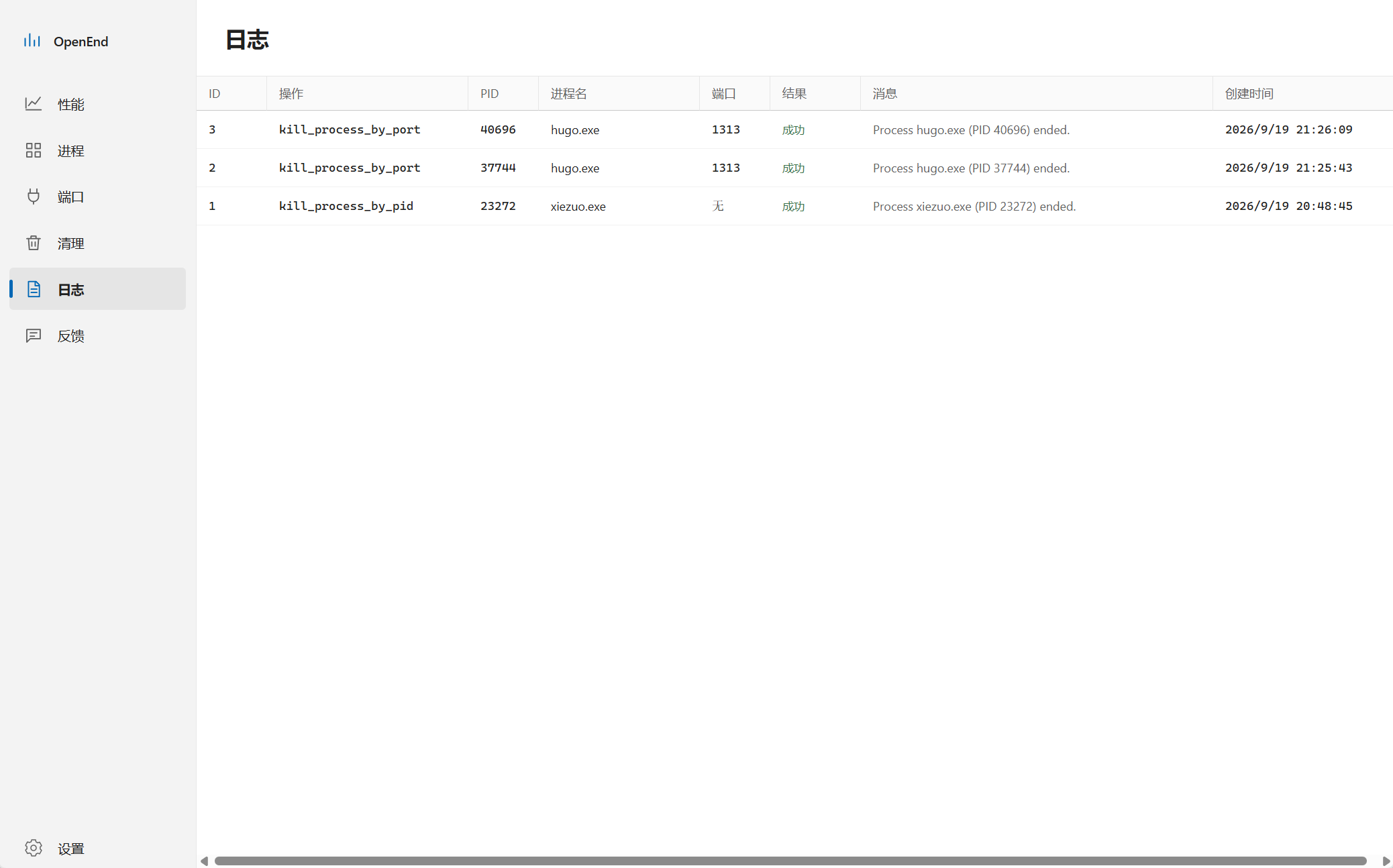
This small detail helps later. If a service disappears and you are not sure why, you can check when an operation happened, which PID was involved, which process was affected, and whether the operation succeeded.
Settings are mainly about protection and cleanup rules.
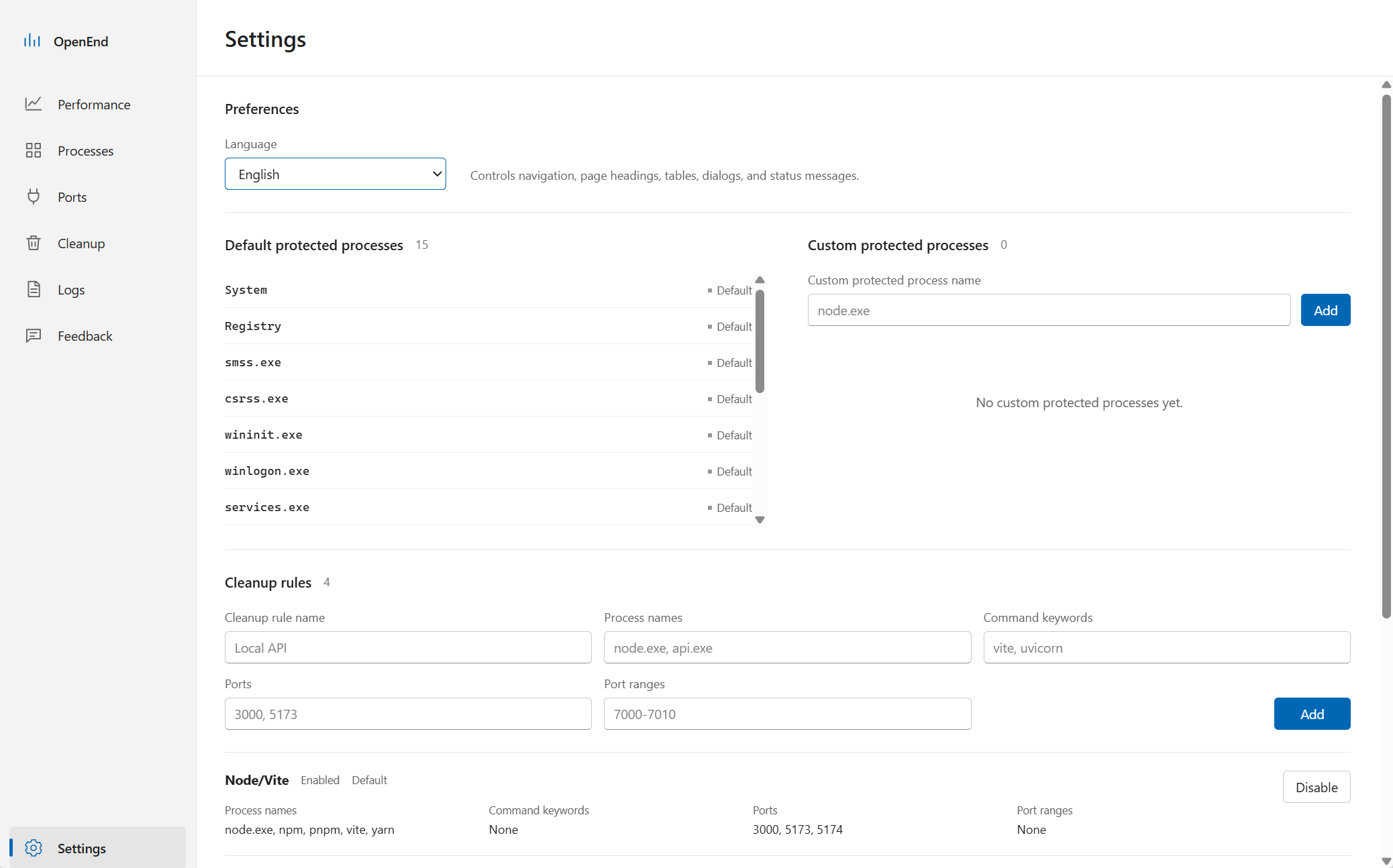
Important Windows system processes are protected by default to reduce accidental termination. You can also add custom protected process names for services you never want to close by mistake. Cleanup rules can be customized with process names, command keywords, ports, and port ranges, so OpenEnd can better match the way you actually work.
In short, OpenEnd is for the small interruptions that keep appearing in local development:
| Situation | What OpenEnd helps with |
|---|---|
| A port is occupied | Find the owning process, PID, path, and command line |
| You are not sure whether a process can be closed | Check its ports, resource usage, and executable path |
| AI coding tools start background processes | Search process names and see what is still using resources |
| The computer suddenly feels slow | Check CPU, memory, GPU, VRAM, and process count first |
| Work is done for the day | Review cleanup candidates before ending leftovers |
| You worry about mistakes | Use default and custom protected process rules |
OpenEnd currently supports Windows 10 / 11.
One honest note: the current Windows installer is not code signed yet. During installation, Windows may show a SmartScreen or “Unknown publisher” warning. Please download it only from the official GitHub Releases page.
The project is open source:
https://github.com/SymphonyW/OpenEnd
If port conflicts, leftover services, and mystery background processes interrupt your development flow too often, give it a try. If you run into issues or have ideas for new workflows, Issues on GitHub are welcome.